Windows development tools sometimes report that a .dll file is missing. I encountered this while installing Visual Studio 2022:
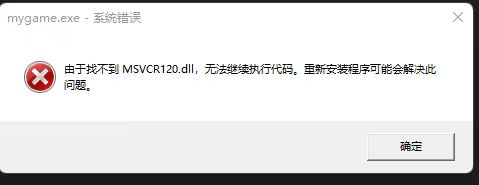
Avoid downloading individual DLL files from generic DLL sites. A file with the right name may have the wrong version or architecture, may be malicious, and usually does not repair the underlying installation or registration problem.
Use this order instead:
Record the exact DLL name and the application that requested it.
Run the application’s official installer in Repair mode. For Visual Studio, use Visual Studio Installer and repair the selected workloads.
If the DLL belongs to a Microsoft runtime, install or repair the official supported Visual C++ Redistributable for the required x86 or x64 architecture.
Install pending Windows updates and restart.
For suspected Windows component corruption, open an elevated terminal and run:
1
2
DISM.exe /Online /Cleanup-Image /RestoreHealth
sfc /scannowCheck Windows Security quarantine history and the application’s event or installer logs.
If the DLL belongs to a third-party program, obtain it through that program’s official installer. Do not place arbitrary copies into System32, SysWOW64, or an application directory without knowing the owning package and required version.