Prerequisites
- An Apple Developer account. This is required even for testing.
- An App ID with
Push Notificationsenabled.
Setup
- Open the Firebase console and create an iOS app. Unlike Android setup, you must first create the app in the Apple Developer portal and enter its bundle ID in Firebase.
- Open the section shown below and upload the corresponding APNs authentication key, which is the recommended option.
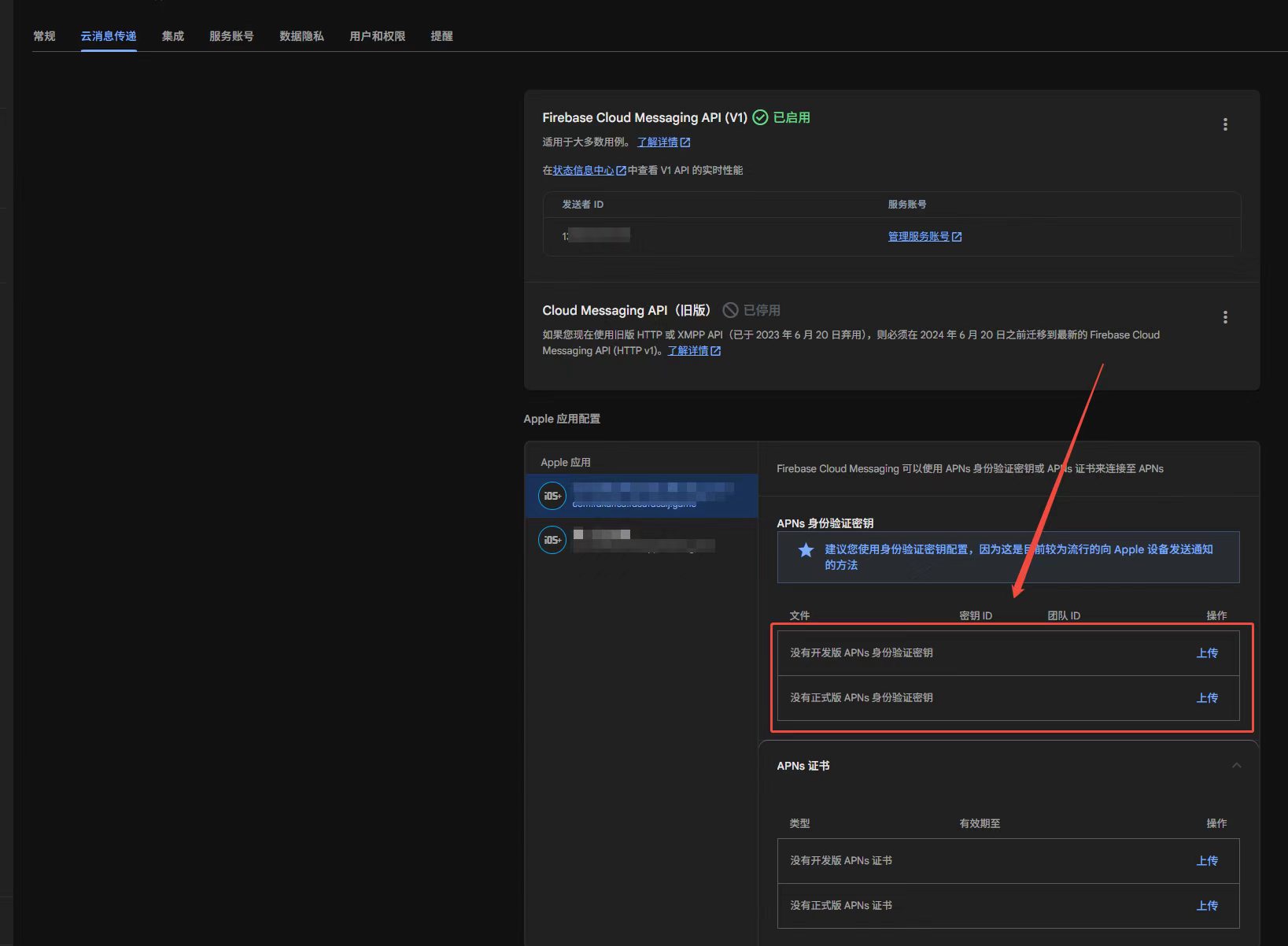
You can also upload an APNs certificate—the .p12 certificate commonly used for push notifications. The authentication key described above is a .p8 file.
Create an APNs authentication key (.p8)
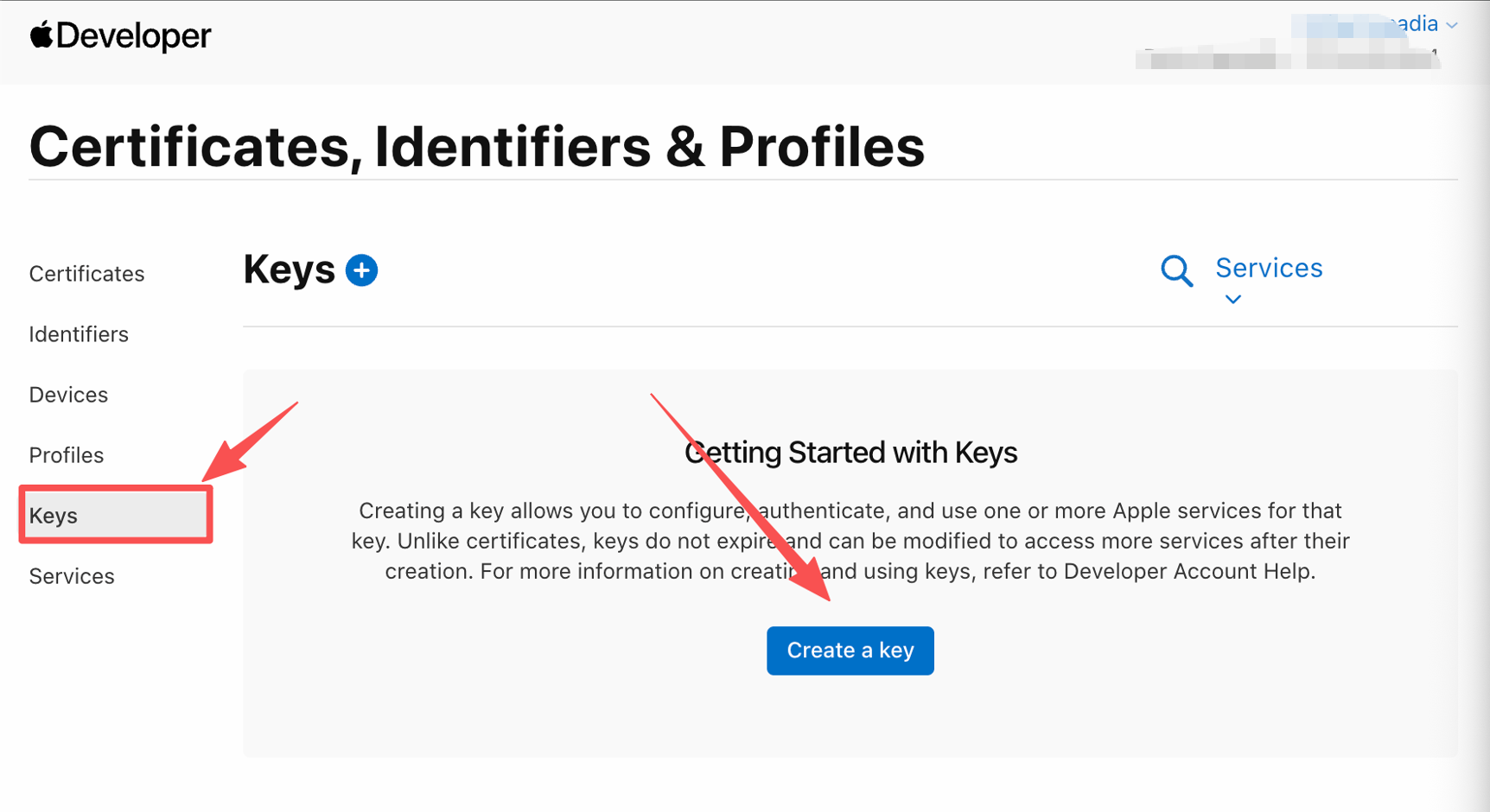
Open Certificates, Identifiers & Profiles in the Apple Developer portal and create an APNs key:
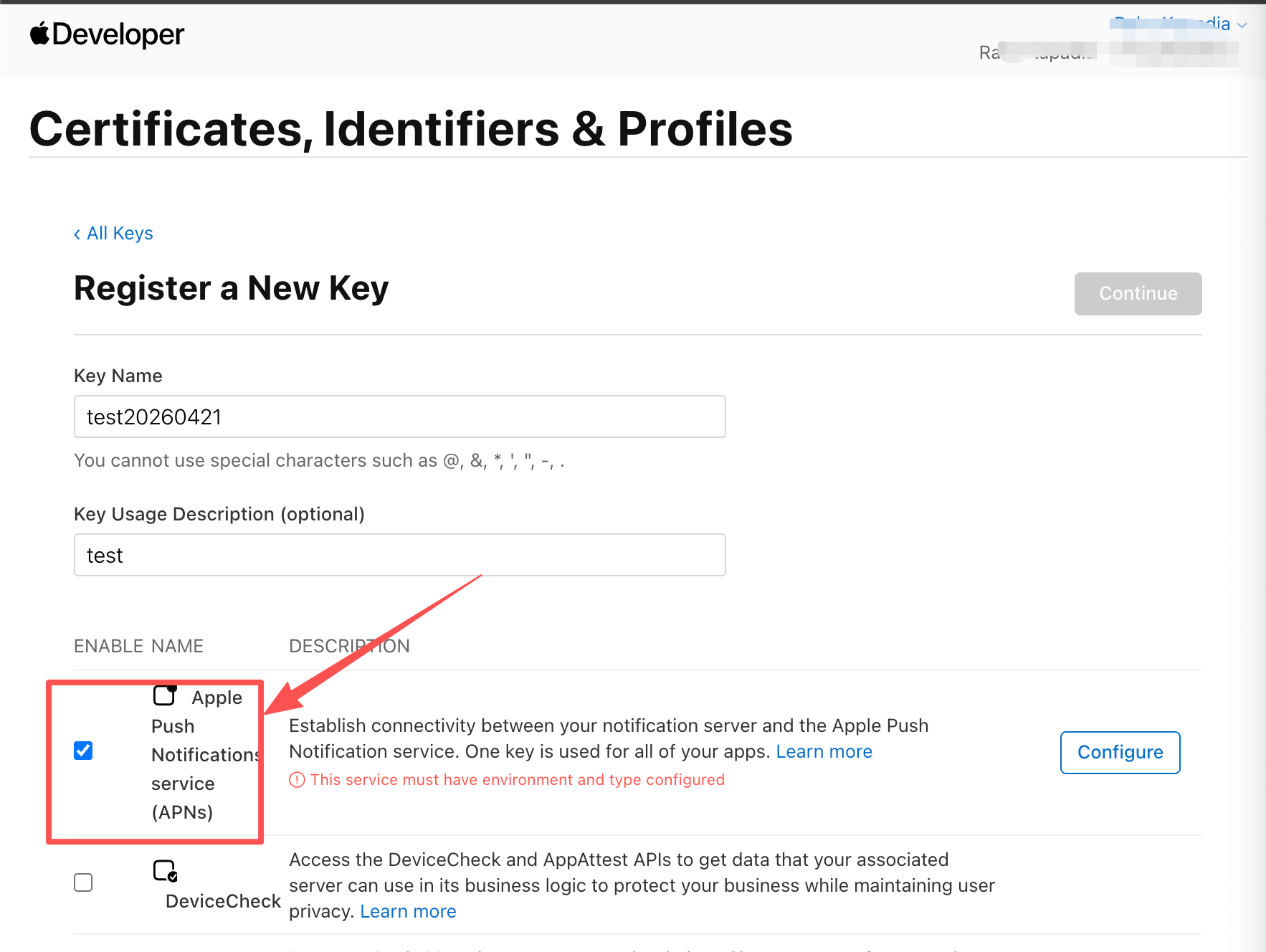
Enter a name and description, then enable Apple Push Notifications service (APNs):
Continue, click Save, and download the key:
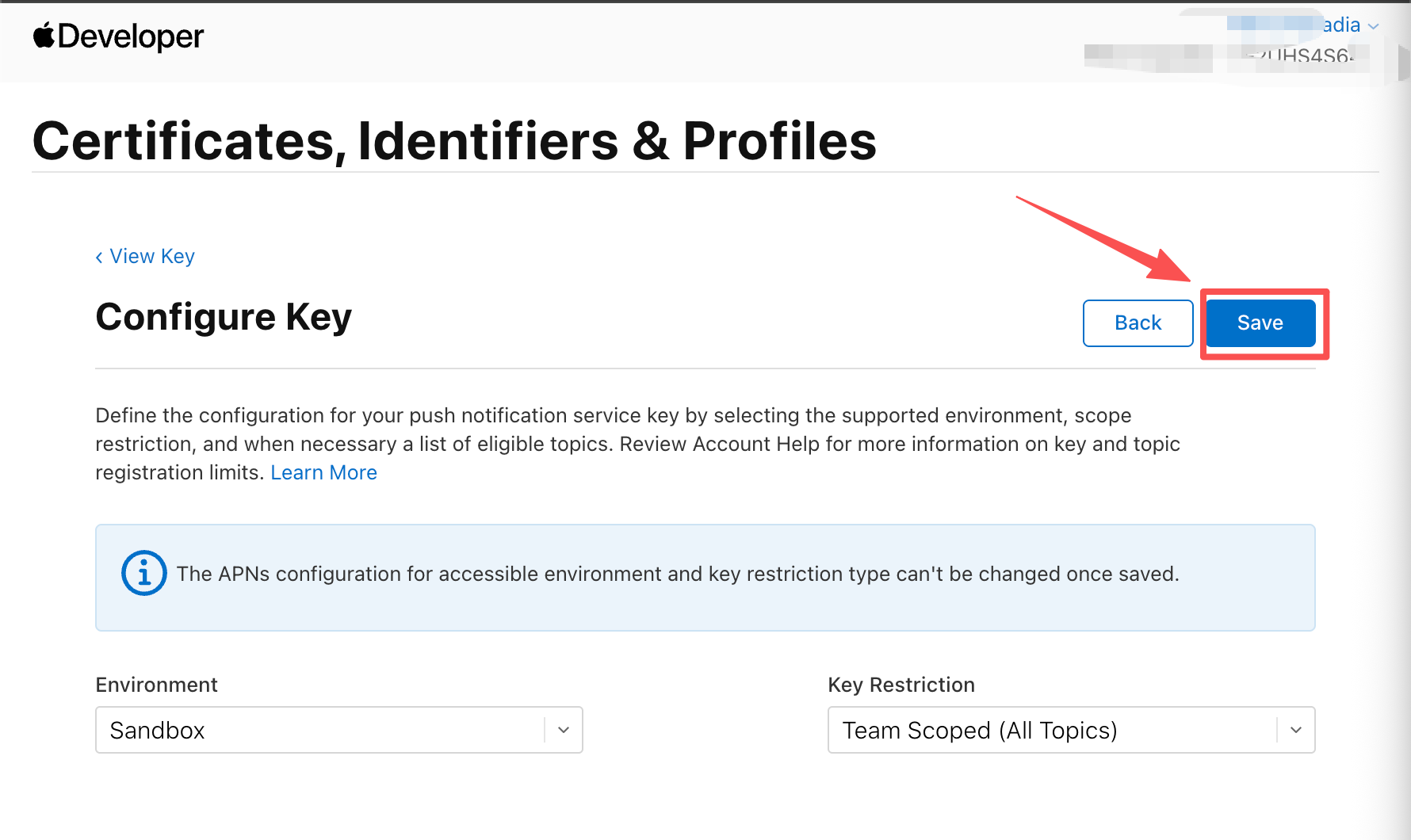
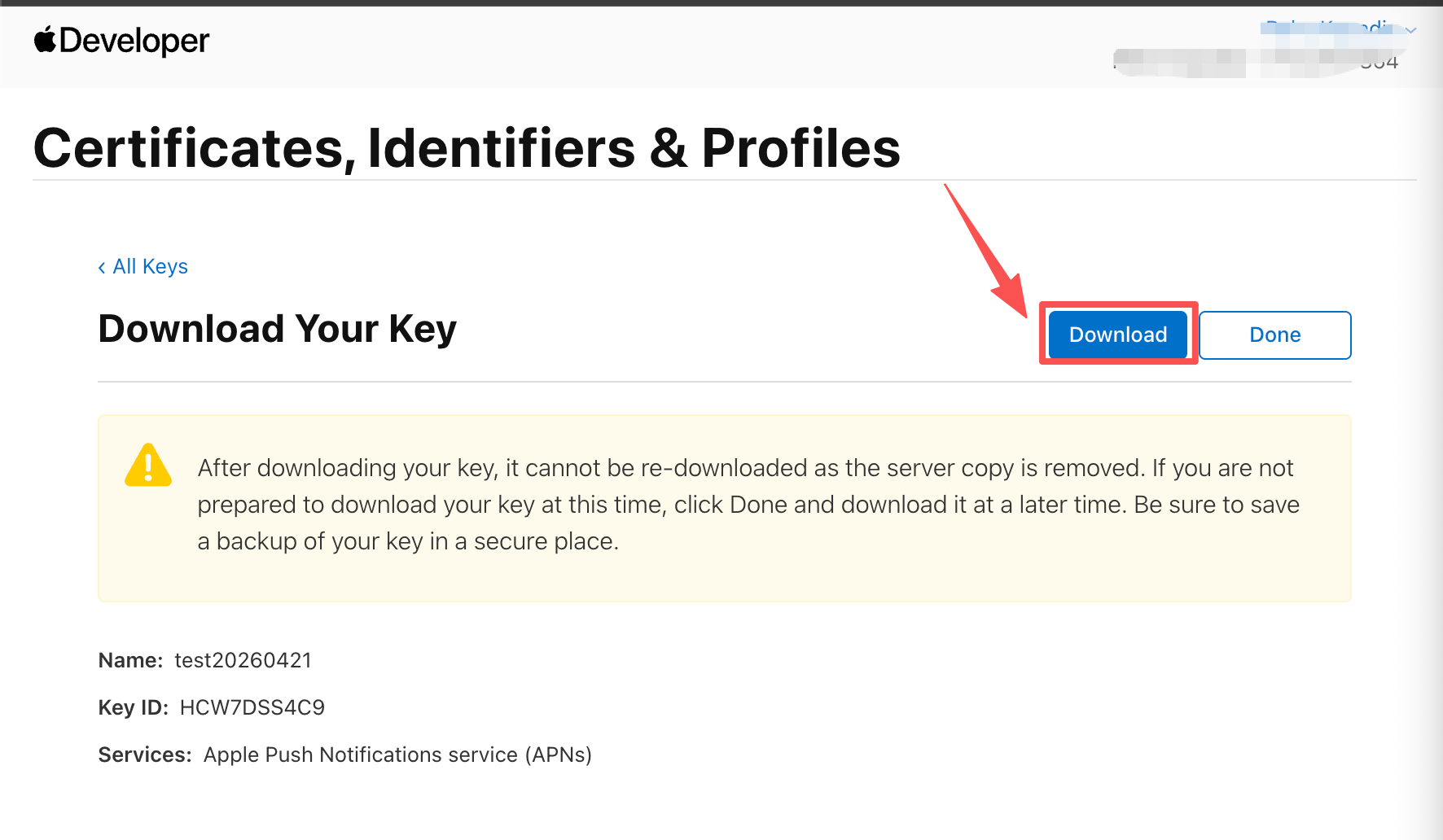
Pay attention to the warning in yellow: the key can be downloaded only once, so store it securely. Finally, return to Firebase and enter the requested APNs key information.